November 26, 2026
Running ChromeOS Kiosks for Signage With Chrome Enterprise
How to run ChromeOS devices as signage kiosks, what Chrome Enterprise Upgrade actually costs and covers, and the Admin console policies that keep screens locked.
By Samuel Edwards

ChromeOS kiosks earn their place as signage players when you commit to Google's Admin console and pay $25 to $50 per device per year for the license that locks them down. If you run three screens in one room, cheaper players win.
The licensing split between Kiosk & Signage Upgrade and Chrome Enterprise Upgrade decides what the Admin console can do for you. Hardware choices run from a $200 Chromebox to an old laptop running ChromeOS Flex. The per-device fee earns its keep on some fleets and not on others.
The Chrome Enterprise Licensing Choice
The management tier splits in two. Kiosk & Signage Upgrade handles single-app kiosk work: locking the device to one app, launching it on boot, and reporting device health back to the Admin console. Chrome Enterprise Upgrade sits above it, and its Chrome Enterprise one-pager lists over 600 configurable policies, a $50 per-device annual price, and a $150 one-time perpetual option per device. CEU also unlocks managed guest sessions and signed-in user policies that a single-purpose signage box does not need.
For a menu board, lobby screen, or waiting-room display, the cheaper license is usually the right one. You are buying remote reboot schedules, URL allow-lists, forced re-registration, automatic ChromeOS updates, and the ability to push a new signage URL without touching the device. Pair that with a managed Chromebox or signage player and the fleet becomes something your IT lead can see and fix from a browser tab.
Multi-tenant settings are where CEU earns the extra $25. A gym with member kiosks, a healthcare site with staff check-in and lobby signage on the same hardware, a dealership with showroom displays that double as sales dashboards during business hours: those cases want managed guest sessions, and Kiosk & Signage Upgrade will not give you one.
The Google Admin Console Policies That Lock a Kiosk Down
Enrollment is where the fleet becomes manageable. On a wiped device, Ctrl+Alt+E opens enterprise enrollment at the login screen; the installer asks which license to apply, so picking Kiosk & Signage here keeps the Admin console from counting the device against CEU seats. Once enrolled, the device lives in whichever organizational unit you drop it into, and the policies attached to that OU govern what it does from then on.
The settings that keep a signage kiosk on track are prosaic. Disable sign-in, set a scheduled reboot in the small hours, keep the screen on across the hours the location is open, require the specific kiosk app or URL, and allow only the hostnames the content loads from. Chromium's own documentation draws a sharp line between kiosk mode and managed guest sessions: kiosk mode runs a single Chrome or Android app per session and is persistent by default, while managed guest sessions are ephemeral and leave no persistent data at the end of the session. For signage you want the persistent one so the cached playlist survives an overnight reboot.
The Hardware Options for ChromeOS Signage
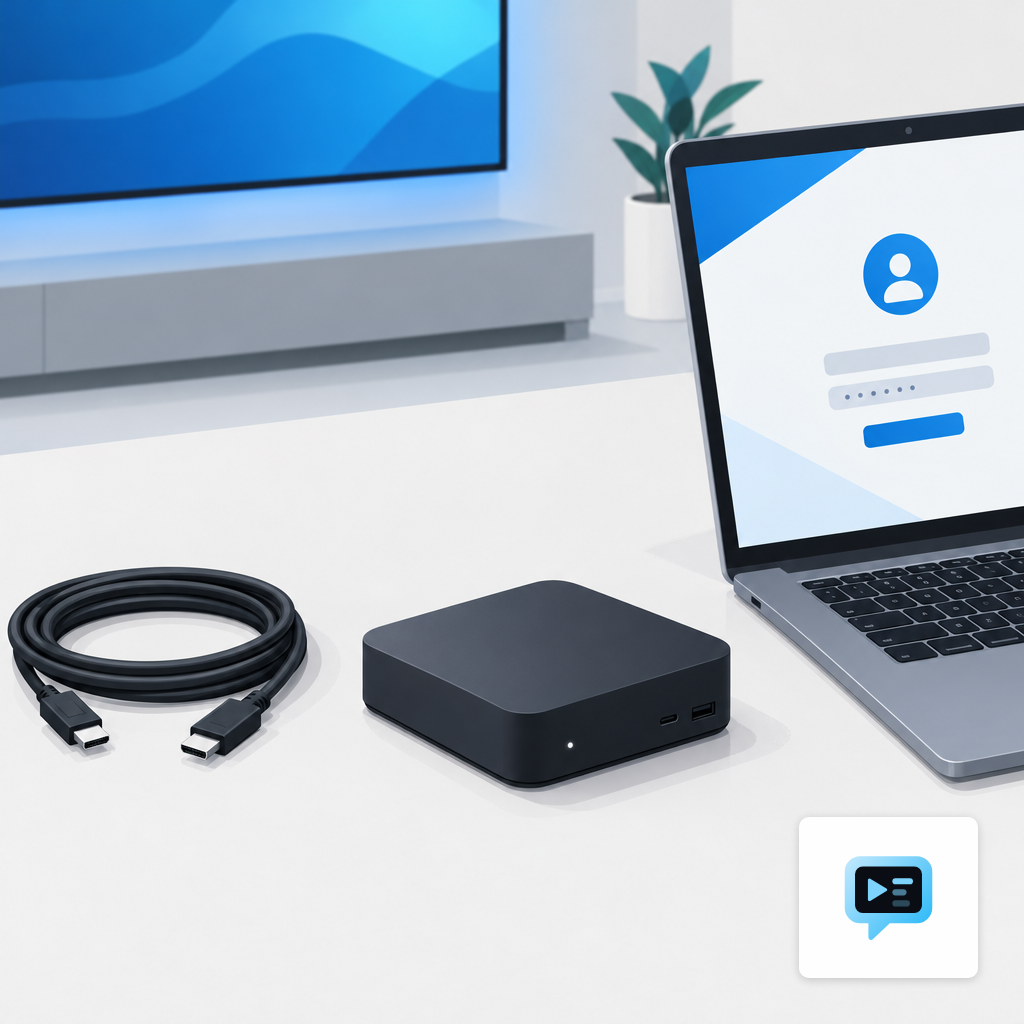
Chromebit sticks are no longer a current choice. Asus discontinued support in late 2020, and buying one on secondary markets gets you hardware that stopped receiving ChromeOS updates years ago. For new builds, the practical ChromeOS device is a Chromebox from HP, Acer, Asus, CTL, or AOpen, with prices spanning roughly $150 to $500 depending on the processor and the warranty you want on it.
ChromeOS Flex changes the math on hardware you already own. Signagelive describes Flex as Google's free operating system that lets organizations repurpose existing Windows, Mac, and Linux hardware for digital signage by enrolling the devices in the Google Admin console and locking them down in kiosk mode. An old office laptop gets a second life as a lobby display, with the same Admin console controls as a shelf-new Chromebox.
Two caveats. Flex does not include the Play Store or Android apps, so a kiosk app that depends on Play Store packaging will not install. And Flex's hardware compatibility list is narrower than ChromeOS proper, so check your model before wiping it. If a Flex install fails on the box you had in mind, a Raspberry Pi signage player is often cheaper than buying a new Chromebox outright.
Setup Path, Step by Step
The configuration path is short on paper and fiddly in practice. The sequence most operators follow:
- Wipe the device with Esc+Refresh+Power and boot into recovery
- Press Ctrl+Alt+E at the login screen to open enterprise enrollment
- Sign in with the Admin account and pick the Kiosk & Signage license during enrollment
- In the Admin console, move the device into an organizational unit reserved for signage
- Under Devices > Chrome > Apps & extensions > Kiosks, add the kiosk app or signage URL and confirm it does not redirect across origins
- Set that app to auto-launch, configure device settings such as network prompt and log upload, and save
- Reboot the device and watch the signage URL load into kiosk mode
The first device takes an hour. The tenth takes five minutes once the OU policies are set. Keep a "staging" organizational unit for devices you are still enrolling, and move each one into its final OU only after you have confirmed the auto-launch URL loads and the reboot schedule triggers.
When the Per-Device Fee Pays Off
The per-device fee is linear and hard to hide. A 10-screen fleet on Kiosk & Signage Upgrade costs $250 a year just for management, before hardware or signage software. At 50 screens the license line runs $1,250 a year on its own. Against that, a Raspberry Pi 5 plus a free player is roughly $100 of hardware with no recurring Google fee, and an Android TV stick sits somewhere between the two.
ChromeOS earns the fee when policy and remote recovery matter more than per-unit cost. A dental group running fifteen clinics wants the same lobby display behavior on every TV, with central reboot schedules and allow-listed URLs, and does not want a staff member touching the device when a screen goes dark. A single-site gym with three screens does not. The decision sits on the number of sites more than the number of screens.
Content still has to arrive from somewhere. The Chrome license locks the device; it does not schedule your lunch menu at 11:00 or push a weekend promo to the drive-thru. That work belongs to the signage software for small business and is where most of the operating cost actually lives.
What to Expect Over the Next Year
Two changes are worth watching. The ChromeOS update window keeps stretching: the extended support policy now covers a growing share of active Chromebooks, which means a Chromebox bought in 2026 should still take ChromeOS updates toward the end of the decade. That lengthens the payback window on both the hardware and the license, and matters when you are costing signage hardware against a five-year horizon.
The second is ChromeOS Flex. Google keeps widening its hardware compatibility list, so the pool of old laptops you can turn into managed kiosks grows every quarter. That likely pushes the cheap end of the market through 2027 toward Flex-on-existing-hardware rather than new Chromebox purchases, while leaving fresh Chromeboxes as the commercial-warranty option for sites that need it. If you are costing a fleet now, factor in the Flex option before you quote the hardware line, and ask whichever signage vendor you are signing with whether their player runs under Flex as cleanly as it runs on a plug-in Chromebox.
Samuel Edwards
Chief Marketing Officer
Samuel Edwards is Chief Marketing Officer at DigitalSign. He has spent 15+ years in technical SEO, content strategy and demand generation, running paid and organic operations for organisations ranging from venture-backed startups to Fortune 500 companies, and has spoken at the Search Marketing Expo series and on the TEDx stage. At DigitalSign he writes about screen content as a piece of marketing that people read from across a room: how long someone actually looks at a board, why five words beat fifteen, and how a business keeps its in-store messaging as current as its website without handing the job to a designer every week.


