November 19, 2026
Raspberry Pi Signage Players and When a Pi Is Good Enough
Where a Raspberry Pi earns a spot behind the screen, how to lock it into kiosk mode, and how to stop SD card failure from killing your signage.
By Eric Lamanna

Can a Raspberry Pi run digital signage? For a single screen cycling images, menus, or a looped MP4, a Pi 4 or Pi 5 holds up fine once you solve the SD card problem and put Chromium into kiosk mode.
Where it struggles is heavy web dashboards, synced video walls, or any vendor platform that only ships Android or Tizen builds. The question worth answering is whether that spare Pi 4 in your back office is good enough for the screen you actually have.
Where a Pi Is Good Enough (and Where It Isn't)
A Pi 4 or Pi 5 is a fair fit for a single menu board, lobby screen, or waiting room display running 1080p or 4K images and short MP4 loops at a sensible bitrate. Light HTML content, a shift schedule, a kitchen timer, a KPI tile, also plays cleanly. The platform has real production miles behind it: Yodeck's Python-based Pi player runs in 135 countries, and the open-source Anthias project has supported Pi 2 through Pi 5 since 2012.
Where the Pi falls down is predictable. Multi-screen video walls that need frame sync, heavy web pages with constantly running JavaScript, and dashboards that embed four live streams at once will all push a Pi past comfortable. If your plan is a vendor platform that only distributes a Tizen or Android build, you are also out of luck. A Pi cannot run those.
SD Card Failure Is the Problem to Solve First
SD cards wear out. Flash cells have a finite number of writes, and a signage Pi writes constantly: browser cache, log files, thumbnail generation, Chromium crash reports. Consumer microSD cards use less sophisticated wear leveling than enterprise SSDs, and when the controller runs out of fresh blocks, playback either freezes or the card drops to read-only in the middle of a lunch rush. It is the most common first-90-days failure on any Pi-based deployment.
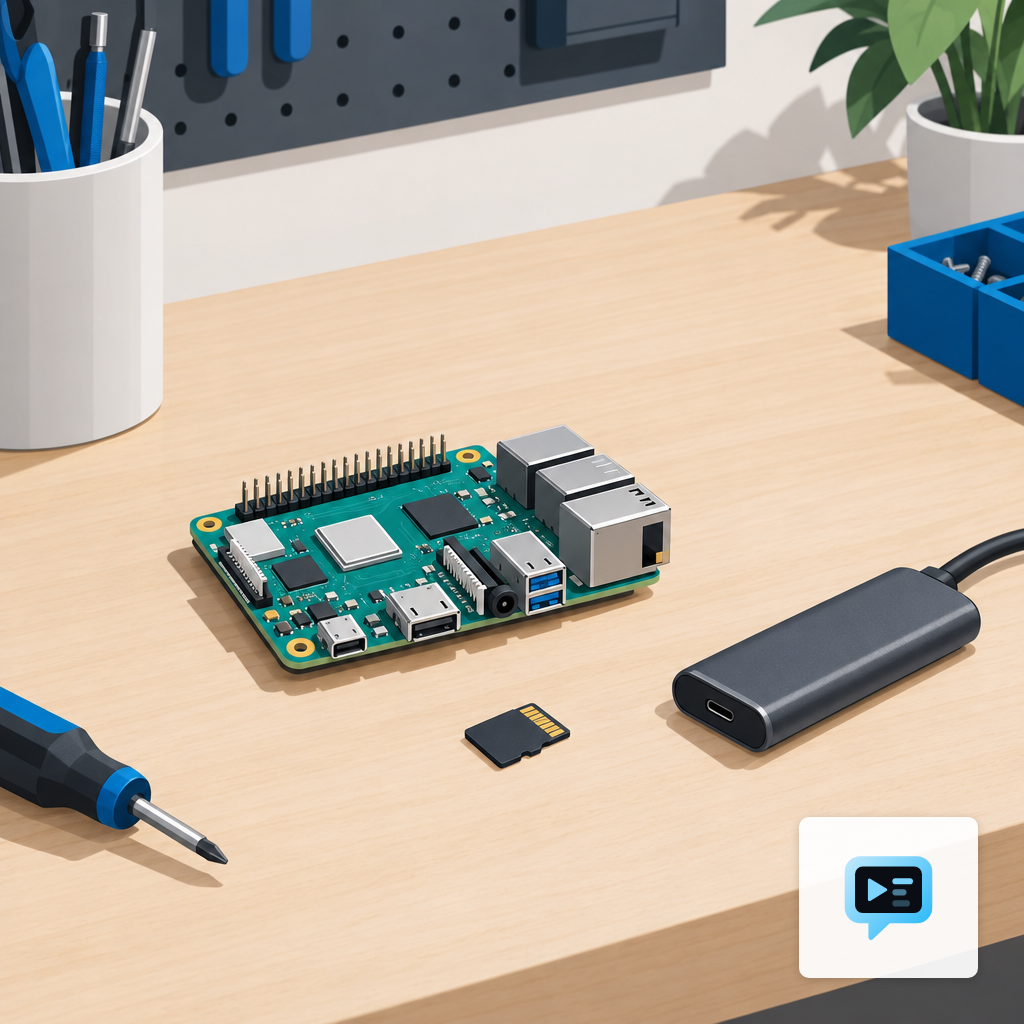
Three fixes work in the field. First, make the root filesystem read-only and push logs to a tmpfs, which erodes almost all of the write churn. Second, buy an industrial-grade microSD rated for high write endurance; it costs about twice as much and lasts far longer. Third, skip the SD card entirely by booting from a USB SSD, or for new builds, switching to a Compute Module 4 with soldered eMMC storage. CM4 boards ship with 8, 16, or 32 GB of eMMC and remove the SD slot as a failure point.
Running the Pi in Kiosk Mode
Raspberry Pi kiosk mode on modern Pi OS is a Chromium process launched with --kiosk --app=URL, started by a systemd user service. Add flags for no first-run prompts, no translate bar, and no restore-session dialog from the Chromium flag list. Use unclutter to hide the mouse cursor, and disable the screensaver and screen blanking in raspi-config. Point the autostart service at your signage URL and let the browser do the rest.
The second half of kiosk mode is making sure the Pi recovers on its own. The Broadcom SoC includes a hardware watchdog timer that reboots the board if systemd stops petting it, which catches the Chromium process that dies at 2 a.m. and never comes back. The watchdog refresh interval on the Pi needs to sit below 15 to 20 seconds to actually fire. Without it, you find out the screen has been frozen on a promo that ended last week only when a customer mentions it.
Thermal Throttling Is Mostly About the Enclosure
A Pi 5 under constant signage load runs hot. The chip begins throttling the Arm cores around 80°C and drops the CPU clock sharply once it crosses 85°C. On the Pi 5 that is a fall from 2.4 GHz down to 1.5 GHz, which is where the stuttery 4K playback complaints usually come from. None of that matters on a desk with airflow. It matters a lot behind a TV in direct sun.
Two enclosure choices decide whether the Pi ever hits that limit. A passive aluminum case with a thermal pad against the SoC handles most lobby and menu board installs. A fan-cooled case is worth it for enclosed cavities, TV backs on south-facing walls, and anything near a kitchen line. Both are cheaper than the service call you make when a Pi in a plastic case starts stuttering through the dinner loop in July.
Pi vs Android TV Stick for the Same Screen
The honest comparison is this. An Android TV stick is cheaper at the till, comes in a sealed package, and ships with whatever player app your signage vendor supports. A Pi costs more once you add a PSU, case, and storage, but gives you full Linux, GPIO pins, and a board you can repair with a soldering iron. The stick's Achilles' heel is a vendor who stops updating the app. The Pi's is the operator who never bothered to lock down the SD card.
For a single-site operator with one or two screens, an Android TV stick or mini PC is usually the lower-friction choice. The Pi earns its slot when you want transparent hardware you can image yourself, you already own one for a pilot, or you are deploying at a scale where a known Linux stack beats depending on a consumer stick's firmware. The broader signage player and hardware page walks through the other options in the same price range.
What Changes Over the Next Year
Three shifts are worth watching if you are about to standardize on Pi. First, pressure on consumer SD cards will keep pushing real deployments toward eMMC and NVMe, and the CM4 and Pi 5 PCIe HATs make that easier than it was two years ago. Second, Pi OS's move to Wayland changes a few kiosk recipes that assumed X11; expect the one-line Chromium autostart scripts floating around old forum posts to need updating. Third, signage platforms keep shifting work into the browser itself, which flatters low-power ARM boards. AI digital signage tools that generate layouts in a PWA are kinder to a Pi than apps that render everything server-side. The decision for that spare Pi in your back office is less about whether the silicon is fast enough, and more about whether the write path to its storage is boring enough.
Eric Lamanna
Director of Business Development
Eric Lamanna is Director of Business Development at DigitalSign. He works with the people who have to live with their screens after the install is finished: the owners, marketing leads and operations managers deciding whether the USB stick and the spreadsheet of what plays where can survive another location. Most of his time goes on the unglamorous half of that problem: who is allowed to change a board, what happens to a screen when the Wi-Fi drops, and what running signage across many sites really costs once the site visits are counted honestly. He came to signage software through digital sales and product work, with a long-running interest in automation and security, the two places where a manual process quietly becomes a liability. He is a believer in workflows that hold up when somebody is out sick, which for a screen that has to be right every morning is most weeks. Eric holds a degree in multimedia design from Olympic College and lives in Denver, Colorado, with his wife and children.


